pgAdmin: PostgreSQL GUI
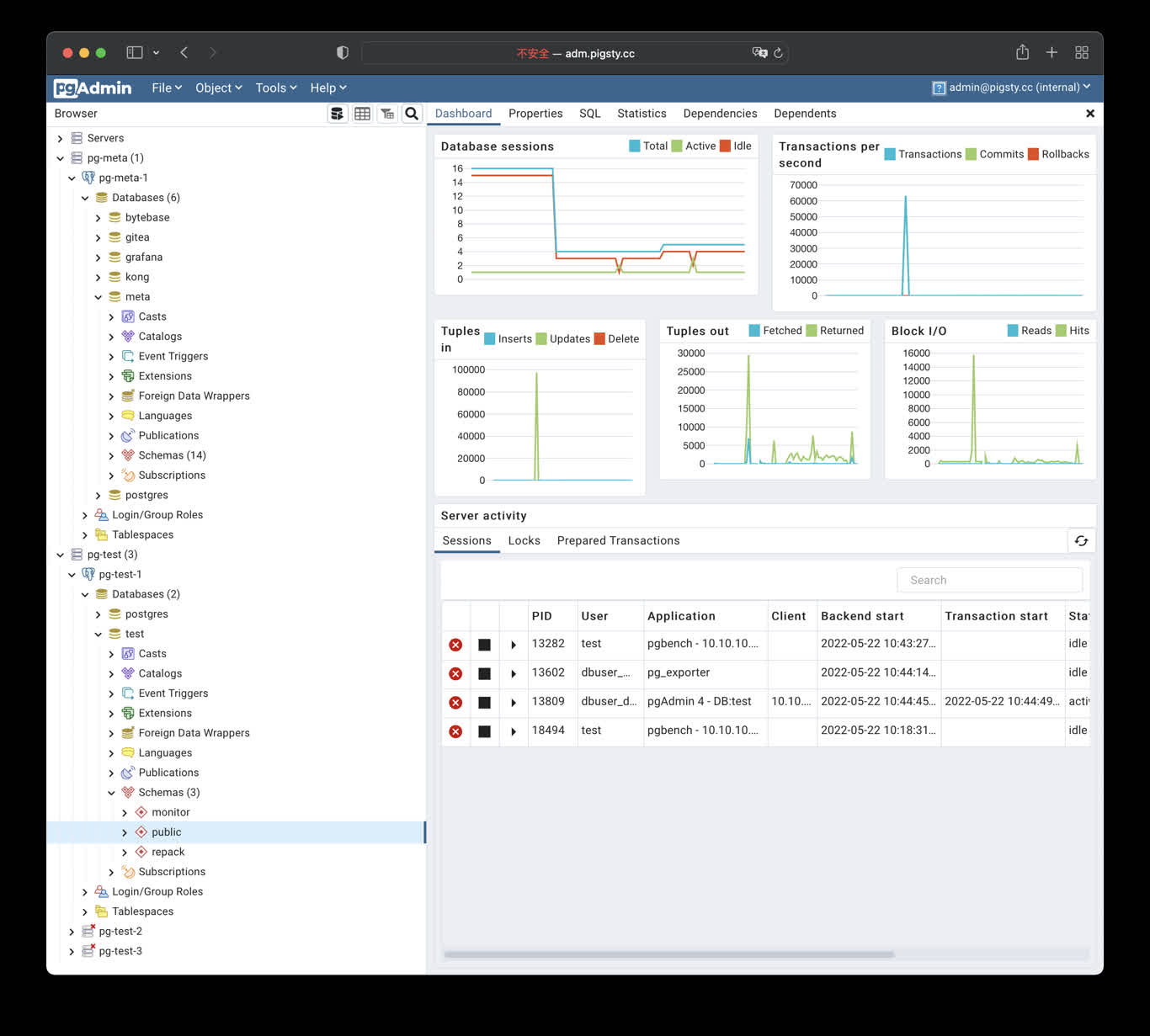
pgAdmin is an open-source PostgreSQL administration and development GUI. Pigsty v4.5.0 provides the app/pgadmin Docker Compose template and can generate a server list and password file from the current inventory.
The template login is [email protected] with password pigsty. It is suitable only for a local demo. Before deployment on a shared network or the Internet, change the credentials, restrict port access, and configure HTTPS.
Quick Start
conf/meta.yml declares pgAdmin on the app group by default. Deploy it against an explicitly limited target:
The default port is 8885; use http://<app_ip>:8885. http://adm.pigsty works only after infra_portal, Nginx, and DNS are configured.
The first container start can take tens of seconds. Check it on the application node:
Application Configuration
Override .env through apps.pgadmin.conf on the app group in pigsty.yml:
app.yml copies the template to /opt/pgadmin and writes overrides to /opt/pgadmin/.env. This file contains the login password and should remain mode 0600.
The current template uses the unpinned dpage/pgadmin4 image. For production, pin a tested version or digest in docker-compose.yml and validate image upgrades as separate changes.
Load the Server List
env_pgadmin generates:
/infra/pgadmin/servers.json: PostgreSQL instance list/infra/pgadmin/pgpass: database administrator password file
In the default conf/meta.yml, the infra and app groups point to the same host, so pgAdmin can bind-mount both files read-only. If pgAdmin and Infra run on different hosts, the application node does not automatically have /infra/pgadmin/; securely distribute equivalent files or customize the mounts instead of assuming that a local path is shared across hosts.
For the default colocated topology, regenerate the files and then ask the running container to import the list and password:
pgpass contains credentials for pg_admin_username. Restrict access to the files, backups, and application host. If pgAdmin should not hold DBA credentials, generate connection definitions for a dedicated least-privilege role instead.
Domain and HTTPS
Add an entry to infra_portal:
Update Nginx on the explicitly limited Infra group:
For a real public domain, point DNS at the server and set certbot on the portal entry:
See CA and Certificates for prerequisites and renewal. The directly exposed port 8885 is not an HTTPS endpoint.
State and Management
From /opt/pgadmin:
The Compose template does not persist /var/lib/pgadmin. Pigsty can re-import its generated server list, but preferences, users, and other state created in the pgAdmin UI may be lost when the container is recreated. If that state matters, add a protected persistent volume for the directory and include it in backups after validating the template change.
Security Checklist
- Change the default pgAdmin login and never distribute real credentials in scripts, screenshots, or tickets.
- The default port mapping listens on the host network; restrict sources with a firewall and use Nginx with valid HTTPS for Internet access.
- Protect
/infra/pgadmin/pgpassand/opt/pgadmin/.env; prefer a least-privilege database role. - Pin and validate the container image, and back up any pgAdmin state you choose to persist.
- pgAdmin can execute privileged SQL. Dropping a database, table, or data still requires separate target confirmation and a recent backup.